Running your app
Once a deployment is running, the App tab is your control panel — four lifecycle buttons, the effective environment and a live log.
The App tab#
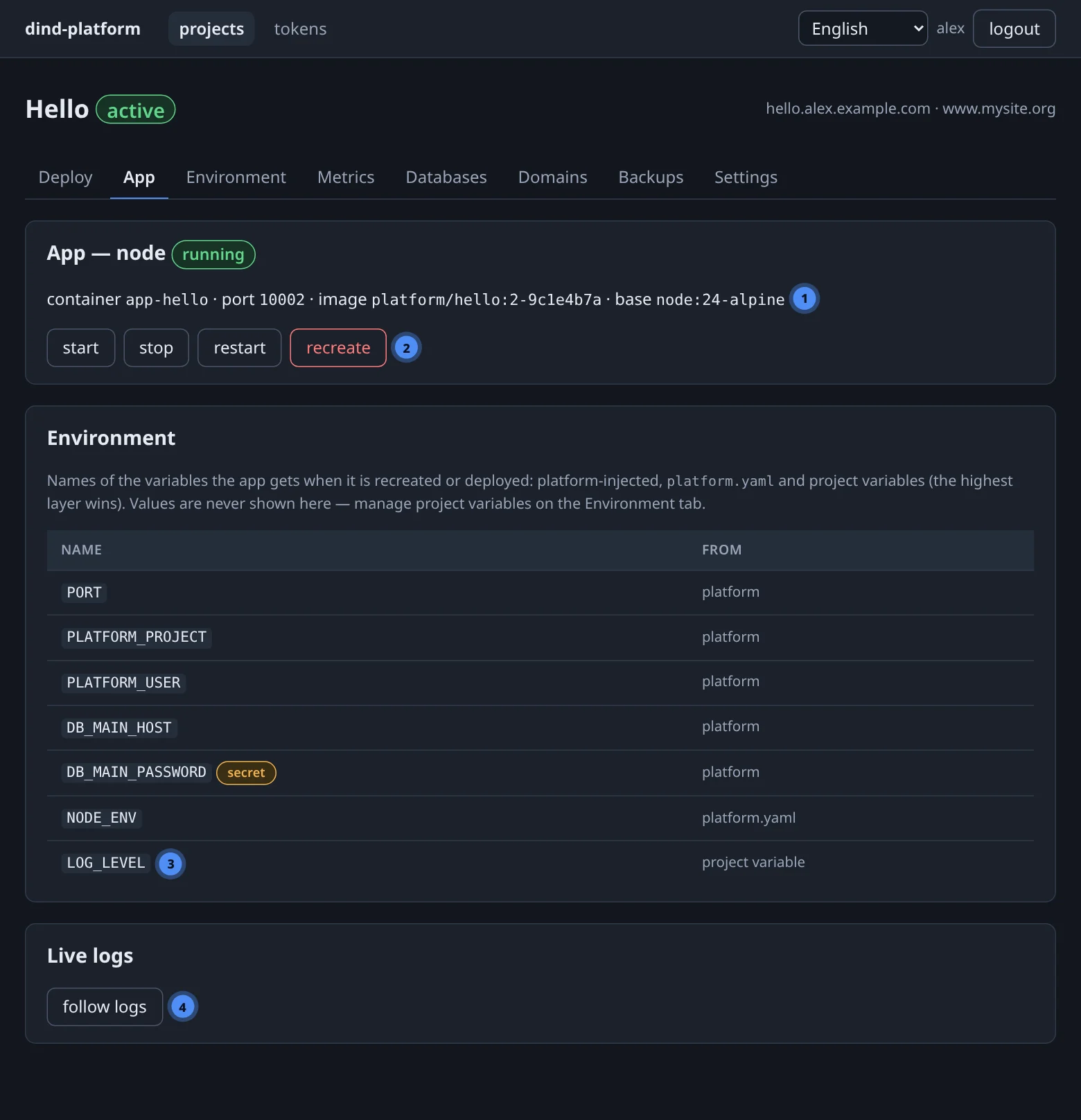
The header tells you what is running: the container (app-<slug>), its port, the built image and — since runtime versions — the base image it was built on.
Lifecycle operations#
| Button | What it does | Use it when |
|---|---|---|
| start | starts a stopped container | you stopped it, or it was stopped by a crash loop |
| stop | stops the container; the route returns an error until it is started again | maintenance, or to free resources |
| restart | restarts the same container | the process hung; no configuration changed |
| recreate | replaces the container from its current image and rebuilds the environment from all sources; volumes are kept | you changed a project variable or an attached database |
recreate does not rebuild the image and does not re-read platform.yaml from your source — for a new manifest, deploy. It is the only way to apply a variable change without a build, and it takes a few seconds of downtime.
The same operations exist as POST /api/v1/projects/{id}/app/{start|stop|restart|recreate} and as the MCP tools app_start, app_stop, app_restart and app_recreate.
Containers always restart after a crash
The app container uses the restart policy unless-stopped: if the process exits it is started again, and after a host reboot the whole stack — including your app — returns by itself. If you deliberately stop an app, it stays stopped.
How the app is wired#
- Your app must listen on
0.0.0.0:$PORT.PORTis injected; the generated Dockerfile also exposes it. - Apps use host networking inside their daemon: no port mapping, no extra network hop. Because each user has a separate daemon, port numbers only have to be unique inside your own daemon.
- TLS is terminated by the platform. Your app speaks plain HTTP; do not redirect to HTTPS yourself on port
$PORT. - Other services are reached by address, injected as variables: databases as
DB_<NAME>_HOST/_PORT, S3 asS3_ENDPOINT.
Resources#
Each app container is limited in CPU and memory:
resources:inplatform.yamlwins when present;- otherwise the platform default applies — 2 CPUs and 4 GiB per container out of the box, changeable by an administrator;
- an administrator can also set a dimension to no cap platform-wide, in which case the container is unlimited in it.
Watch actual use on the Metrics tab.
Persistent data#
| Where the app writes | After a deploy or recreate |
|---|---|
| the container filesystem | lost |
a volumes: path |
kept (and included in project backups) |
| a database | kept |
| your S3 bucket | kept |
Logs#
The Live logs card has a follow logs button that streams the container's stdout and stderr (server-sent events). It is disabled while the app is not running.
# the last 200 lines through REST / MCP (no follow)
curl -fsS "$BASE/api/v1/projects/$PID/logs?tail=200" -H "Authorization: Bearer $TOKEN"
# MCP: get_logs(project=7, tail=200)    — up to 5000 lines
Log to stdout
The platform shows what your process writes to stdout/stderr. Files inside the container are not collected — and disappear with it.